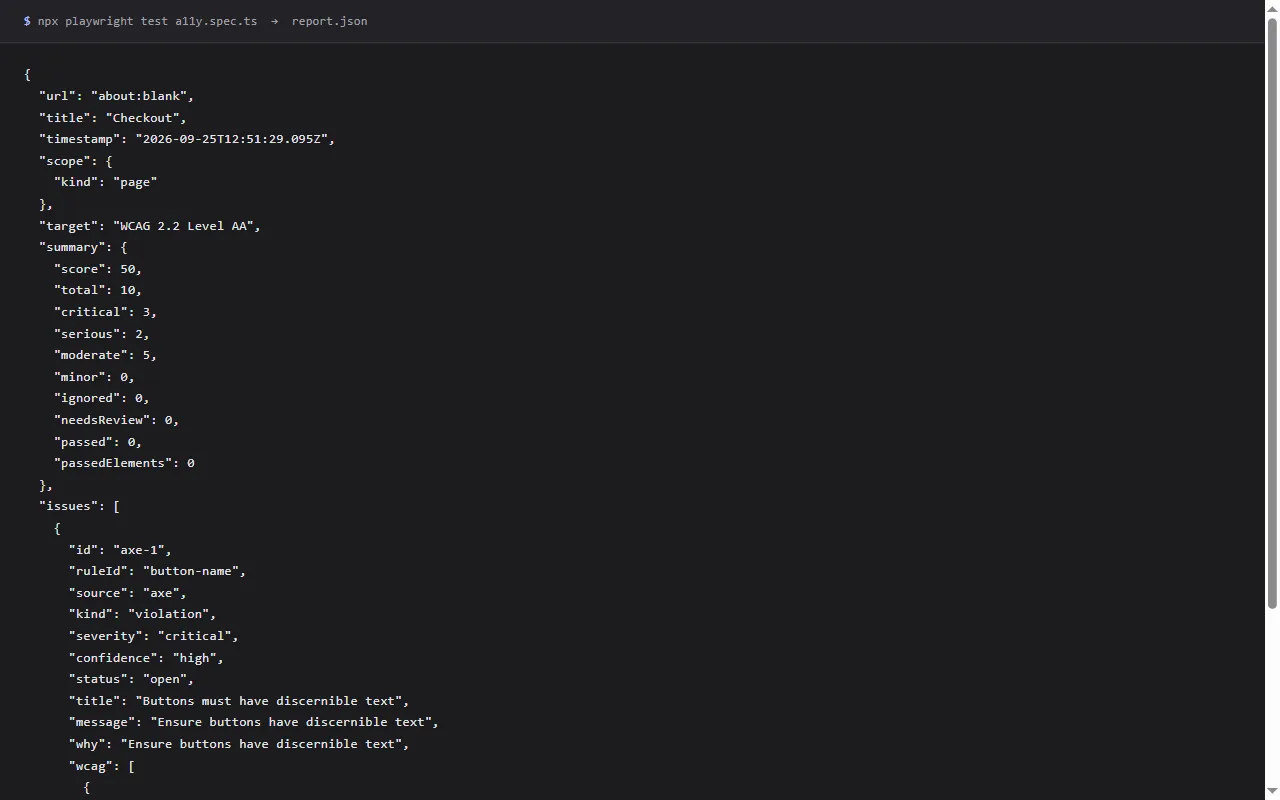
One file, no browser APIs
The scanning engine ships as a standalone bundle with no dependency on the extension APIs. Any runner that can evaluate a script in a page — Playwright, Puppeteer, Selenium — can inject it and read the report back as JSON.
The same rules, the same results
This is not a reduced rule set or a second implementation. A finding in CI has the same rule id, the same selector and the same suggested fix as the one you would see in the panel — which is what makes “reproduce it locally” a real instruction rather than a hopeful one.
Why a separate bundle
The extension's interface lives in a DevTools panel, and test runners cannot drive DevTools panels. So "open the panel and press Scan" cannot be automated.
The engine underneath has no such limit. It is ordinary code that reads the document it is running in. The CI bundle, a11y-scanner.js, is exactly that engine as one file with no browser-extension APIs: inject it into a page and call a global function.
What you get
- The same engine and the same code path as the panel. A finding in CI has the same rule id, the same selector and the same suggested fix you would see in DevTools.
- Reproducible failures. A CI failure reproduces by opening the panel on the same page, so "reproduce it locally" is a real instruction.
- The same report format. The full report the bundle produces has the same shape the extension exports, so a report captured in CI can be opened and read the same way.
- Any runner. Playwright, Puppeteer, Selenium, or anything else that can add a script to a page and evaluate it.
At a glance
await page.addScriptTag({ path: 'a11y-scanner.js' });
const violations = await page.evaluate(() => window.a11yScanner.violations());
expect(violations).toEqual([]);
violations() returns confirmed failures only, as { rule, severity, wcag, element, message }. scan() returns the full report. Both accept options such as the conformance standard, ignored rules and ignored selectors.
Read the full Playwright & CI guide for setup, frames, every option, CI configuration and saving reports as artifacts.
Start with the page you are on
Install the extension, press F12 and open the Accessibility tab. No account, nothing to configure, and nothing leaves your machine.