The path, numbered
Every focusable element gets a number and a line to the next one. A path that leaps across the page, doubles back, or steps into something you cannot see is visible at a glance rather than after twenty presses of Tab.
- Positive
tabindex, which almost always breaks the order it was meant to fix. - Elements reachable by keyboard but scrolled off screen.
- Focus that jumps backwards.
- Controls hidden from screen readers but still focusable.
- Controls with no visible focus style.
On-screen only, by default
A long page can hold hundreds of stops, and numbering all of them buries the ones you can see. The overlay starts with only what is on screen, renumbered so the badges read 1, 2, 3 rather than 41, 42, 43 — and you can switch the rest back on.
What it shows
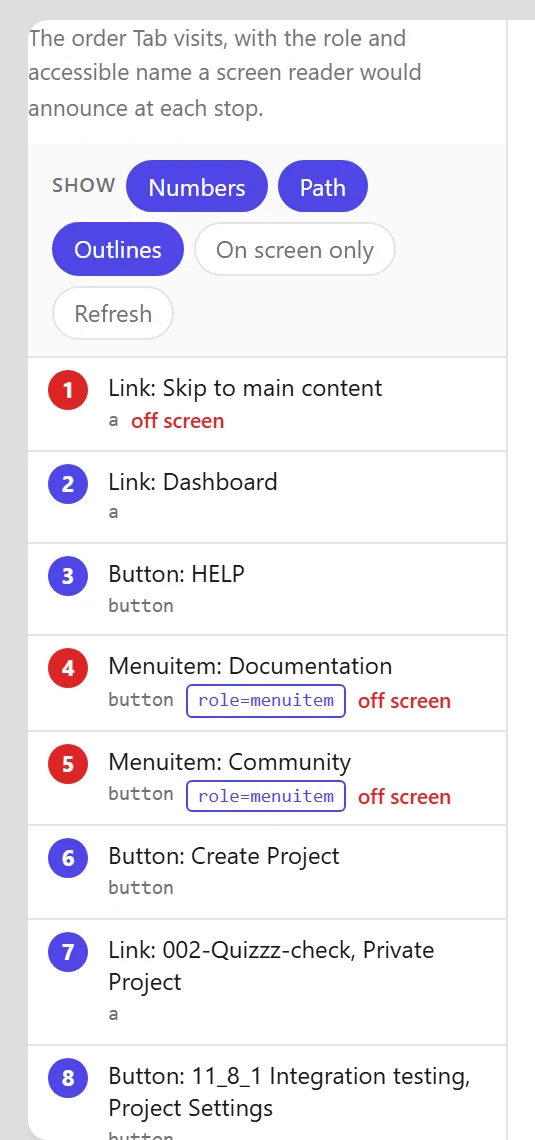
Turn the overlay on and every element the keyboard can reach gets a numbered badge on the page, with a line joining it to the next one. Next to it, the Tab order list shows each stop in order with the role and accessible name a screen reader would announce, for example "Link: Skip to main content" or "Button: Create Project".
It answers the questions you would otherwise answer by pressing Tab dozens of times:
- Does focus move in a sensible order, or does it jump across the page and back?
- Can the keyboard reach something that is hidden or scrolled out of view?
- Does anything get focus without having a visible focus style?
How to use it
- Open the Tab order tab in the panel.
- Choose what to draw with the Show buttons: Numbers, Path (the connecting lines) and Outlines (a box around each stop).
- Step through the list. Selecting a stop highlights that element on the page.
- Press Refresh after the page changes, for example after opening a menu.
What it flags
Stops are flagged in the list where they sit, so you can judge them in context:
| Flag | What it means |
|---|---|
Positive tabindex | A tabindex above zero. It almost always breaks the order it was meant to fix |
| off screen | The element can receive focus but is scrolled out of view, so focus seems to disappear |
| Focus moves backwards | The next stop is earlier on the page than the one before |
| Hidden from screen readers but focusable | Keyboard users land on something assistive technology says is not there |
| No visible focus style | Sighted keyboard users cannot see where they are |
Each stop also shows its element and, where it matters, its explicit role (for example a button with role=menuitem).
On screen only, by default
A long page can have hundreds of focusable elements, and numbering all of them buries the ones you can see. So the overlay starts with On screen only: just the stops in view, renumbered so the badges read 1, 2, 3 instead of 41, 42, 43. Switch it off to see every stop on the page.
Tips
- Check after every interaction that changes the page. Opening a dialog should move focus into it. Closing it should bring focus back.
- Look at the first stop. On most pages it should be a "Skip to main content" link.
- Combine it with the Screen reader transcript, which shows the reading order. The two orders are different things and both matter.
Start with the page you are on
Install the extension, press F12 and open the Accessibility tab. No account, nothing to configure, and nothing leaves your machine.