A worklist, not a lecture
Eighteen checks cover the questions a rule engine cannot answer: whether alt text describes its image, whether captions are accurate, whether the reading order still makes sense once the styles are gone.
Each check says why a scanner could not answer it — so five minutes of your time is five minutes no tool could have saved you — and what a failure actually looks like, so “pass” is not the default answer.
It brings the evidence
“Review your images” is advice. A table of your eleven images and what each one announces is work you can do.
Each check pulls the relevant content out of the page and points at rows that look suspicious — an alt attribute that is really a file name, say — without calling them failures. That judgement is yours.
Where part of a check can be automated, the button is right there: “Turn the CSS off and read it” is one click, not an instruction to go and find a feature.
It survives being closed
Record a verdict and a note against each check. The review is saved for that page, it is still there when you come back, and it goes into the exported report — so a colleague can see what a person checked and what they decided.
Why manual checks exist
Automated rules can see that an image has alt text. They cannot see whether that text describes the image. The same is true of captions, reading order, link text that only makes sense in context, and whether keyboard focus is ever lost. These questions need a person, and they make up a large share of real accessibility failures.
Most tools mention this in a footnote. This one gives you a structured worklist for it, inside the same panel as the automated results.
How to use it
- Run a scan, then open the Manual checks tab.
- Pick a check from the list. Each one shows the success criterion it relates to and a rough time estimate.
- Read Why this is not automated, so you know exactly what the machine could not decide.
- Follow What to do: short, concrete steps for this page.
- Look at the evidence the scanner gathered from the page (see below) and judge it.
- Record your verdict (Passes or Fails) and, if useful, a note.
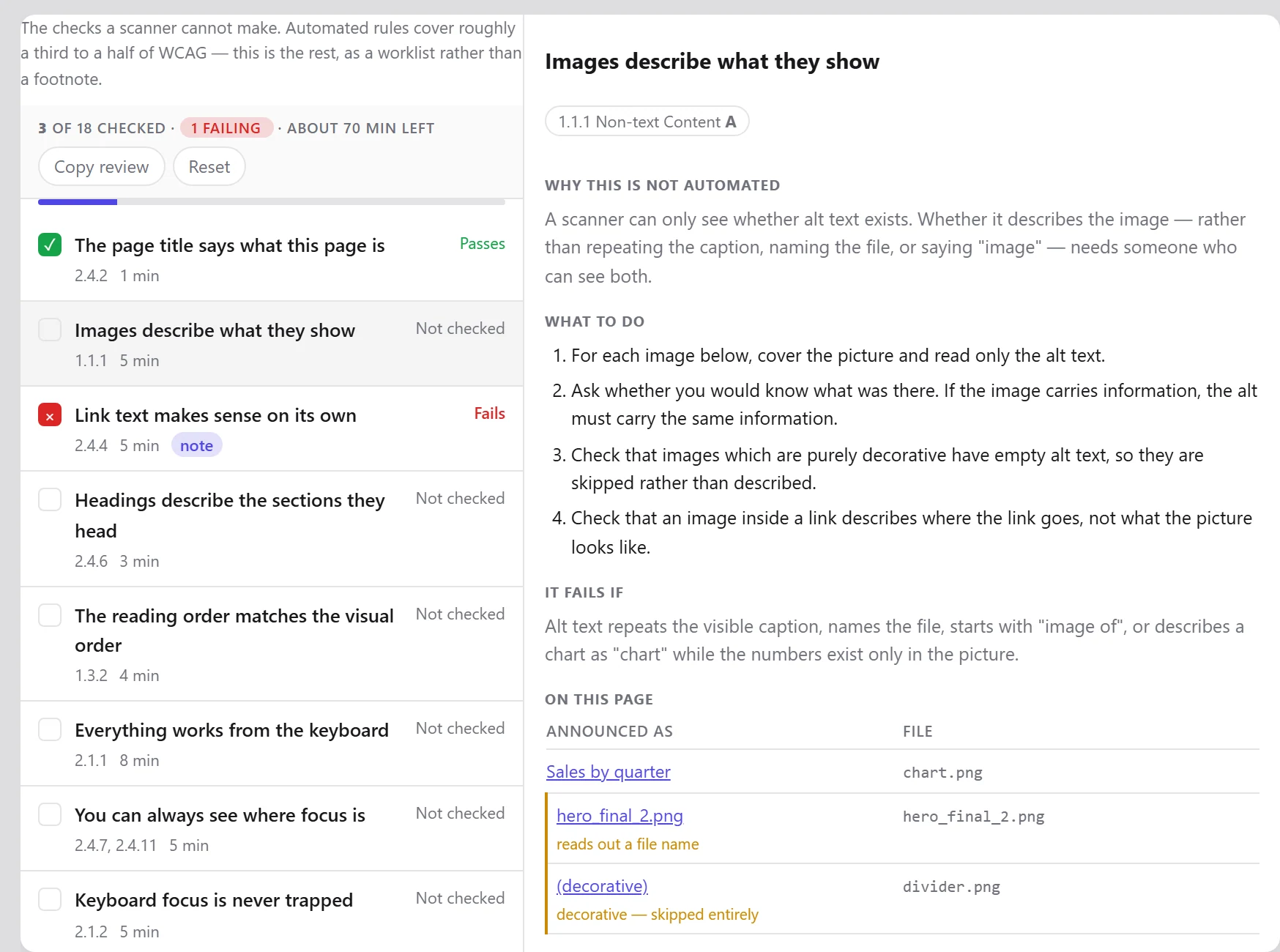
The header keeps count as you go, for example "3 of 18 checked · 1 failing · about 70 min left", so you always know how much is left.
It brings the evidence to you
"Review your images" is advice. A table of every image on the page and what each one announces is work you can actually do.
Where the evidence can be collected, each check pulls it out of the page for you. For Images describe what they show, that is a table of every image on the page: what it is announced as, and the file it comes from. Suspicious rows are marked, such as alt text that is really a file name like hero_final_2.png, or an image skipped as decorative.
Where part of a check can be automated, the button is right there. The reading order matches the visual order comes with a one-click "turn the CSS off and read it" view, instead of an instruction to go and find that feature somewhere else.
Suspicious rows are flagged, never failed. The judgement stays yours.
The checks cover questions such as:
- The page title says what this page is
- Images describe what they show
- Link text makes sense on its own
- Headings describe the sections they head
- The reading order matches the visual order
- Everything works from the keyboard
- You can always see where focus is
- Keyboard focus is never trapped
What "fails" looks like
Every check lists It fails if…: concrete examples of a failure, so "pass" is never the default answer. For images, for example, it fails if the alt text repeats the visible caption, names the file, or says "image" and nothing more.
It is saved, and it travels
- Your verdicts and notes are saved for that page and are still there when you come back.
- Copy review puts the whole review on the clipboard, and Reset starts it again.
- Exported reports carry the manual review alongside the automated findings, so a colleague can see what a person checked and what they decided.
- Manual reviews can be deleted at any time, one page at a time or all at once from Settings → Manual reviews.
Good to know
- A completed review is recorded as human judgement and kept separate from the automated score. It is never folded into it.
- The checks are a guided worklist, not a certification. They help a person test efficiently. They do not replace testing with real assistive technology and real users.
Worth knowing: A completed review is recorded as human judgement, deliberately kept separate from the automated score rather than folded into it.
Start with the page you are on
Install the extension, press F12 and open the Accessibility tab. No account, nothing to configure, and nothing leaves your machine.