Read it as it is heard
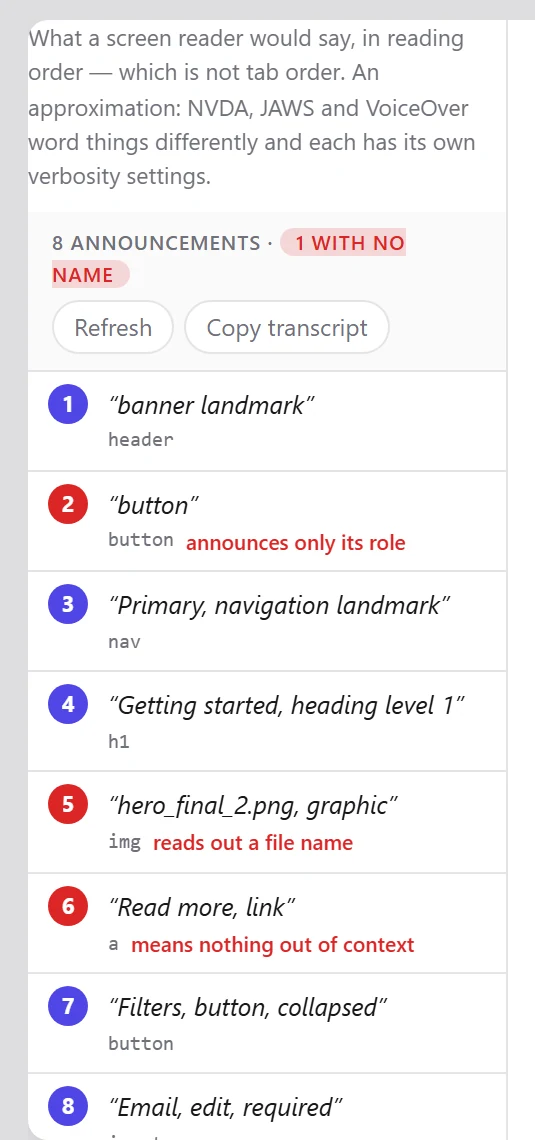
The transcript walks the page in reading order and writes out what each element contributes: its accessible name, its role, its state.
An icon button with no label looks perfectly reasonable in the Elements panel. Rendered as the single word “button”, it plainly is not.
Flags, in context
Rows that announce as nothing, announce a file name, or carry a role with no name are marked in place — next to the row above and below them, which is the only way to judge whether a heading actually reads as a heading.
- Click a row to highlight that element in the page.
- Copy the whole transcript, or one row’s selector.
- Landmark regions are named rather than read out in full.
What it is
The transcript walks the page in reading order, the order a screen reader meets content (not the tab order), and writes out what each element contributes: its accessible name, its role and its state. Each line reads roughly as a screen reader would say it:
- "banner landmark"
- "Primary, navigation landmark"
- "Getting started, heading level 1"
- "Filters, button, collapsed"
- "Email, edit, required"
Reading the page this way exposes problems that look fine in the Elements panel. An icon button with no label is perfectly reasonable markup. Rendered as the single word "button", it plainly is not.
How to use it
- Open the Screen reader transcript tab in the panel.
- Read down the list. The header counts the announcements and how many have problems, for example "8 announcements · 1 with no name".
- Click any row to highlight that element on the page.
- Press Refresh after the page changes, and Copy transcript to paste the whole thing into a ticket or pull request.
What it flags
Problem rows are marked in place, next to the rows around them, which is the only way to judge whether a heading really reads as a heading:
| Flag | Example |
|---|---|
| Announces only its role | "button", an icon button with no accessible name |
| Reads out a file name | "hero_final_2.png, graphic" |
| Means nothing out of context | "Read more, link" |
| A role with no name | A landmark or control that announces its type but not what it is |
Landmark regions are named rather than read out in full, so the transcript stays readable.
Good to know
- Screen readers such as NVDA, JAWS and VoiceOver word things differently, and each has its own verbosity settings. The transcript is an approximation built from the browser's accessibility tree, not a recording of a particular screen reader.
- It is not a substitute for testing with a real screen reader. What it does is let you catch the obvious problems (unnamed controls, file-name alt text, vague links) before you get there.
Worth knowing: A transcript is a model of what a screen reader would say, derived from the accessibility tree. It is not a substitute for testing with a real screen reader, and it does not try to be.
Start with the page you are on
Install the extension, press F12 and open the Accessibility tab. No account, nothing to configure, and nothing leaves your machine.