One fix, not fifty
Findings can be grouped by the component they came from rather than by the rule they broke. A list of eighty contrast failures collapses into one entry: a button, used eighty times, with one colour to change.
The grouping is derived from the markup — class names, framework component boundaries, repeated structures — and it shows the evidence it used, so you can see why two things were treated as the same component.
Across pages, too
Run a whole-site scan and the same grouping applies across every page in it. A rule that fails on every page scanned is almost always one shared component.
The problem with long lists
A findings list ordered by rule tells you what is wrong. It does not tell you what to change. Eighty contrast failures are rarely eighty bugs: usually it is one button, used eighty times, with one colour to fix.
How to use it
- After a scan, switch the findings list from By rule to By component.
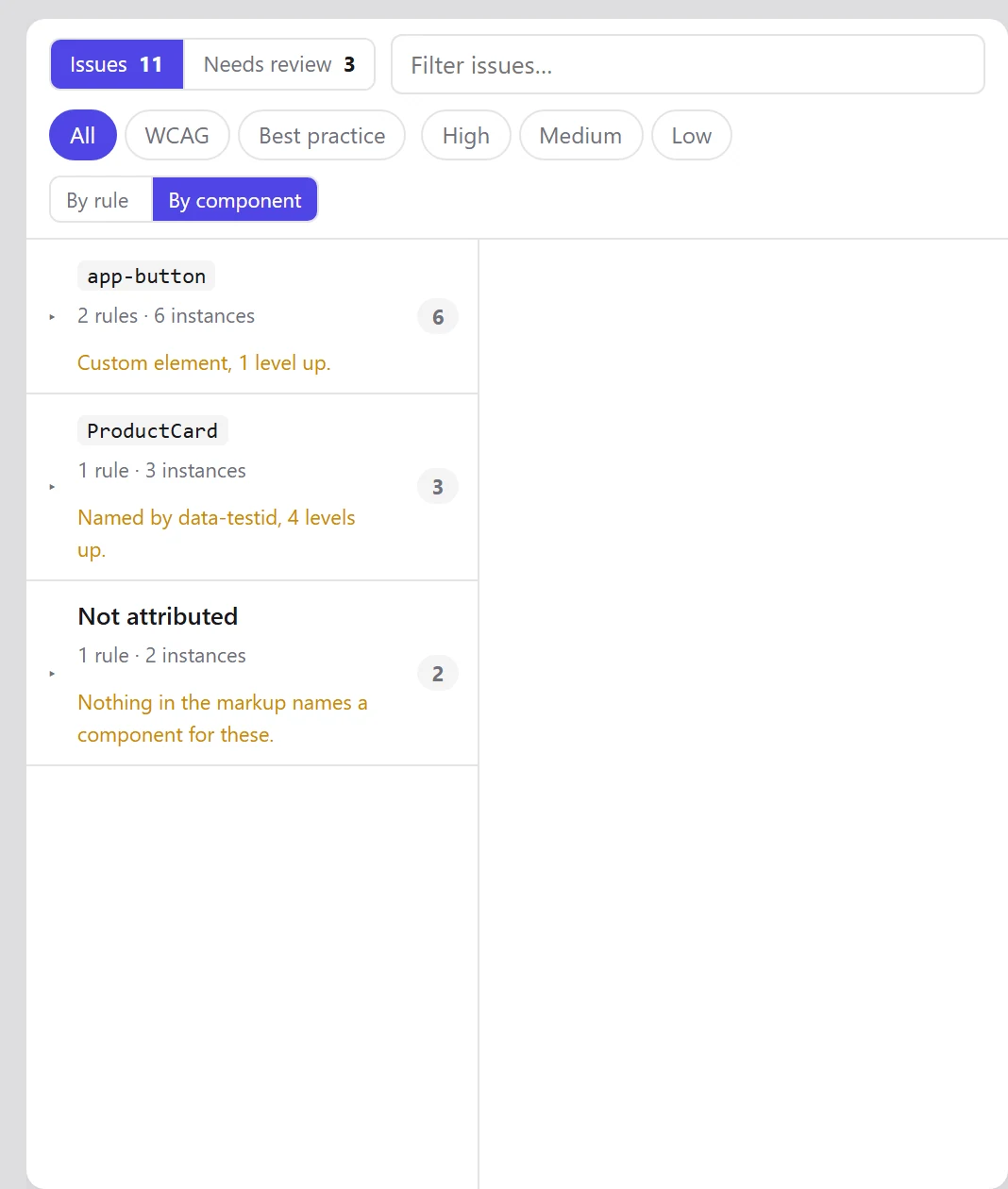
- Findings collapse into one entry per component, each with the number of rules it breaks and the number of instances, for example
app-button· 2 rules · 6 instances. - Open a component to see its findings, fix it once, and re-scan.
How components are recognised
The grouping comes from the rendered markup: framework component boundaries, custom element names, class names and repeated structures. Each group shows the evidence it used, so you can see why things were treated as the same component:
| Evidence shown | Meaning |
|---|---|
| Custom element, 1 level up | The finding sits one level inside a custom element such as <app-button> |
Named by data-testid, 4 levels up | The nearest identifiable ancestor is named by its test id |
| Not attributed | Nothing in the markup names a component for these findings |
"Not attributed" is shown honestly as its own group, rather than guessing a component and sending you to fix the wrong thing.
Across a whole site
Run a whole-site scan and the same grouping applies across every page in it. A rule that fails on every page scanned is almost always one shared component, such as the header or a button, and fixing that component fixes it everywhere.
Tips
- Start with the biggest group. The component with the most instances is usually the cheapest large improvement.
- Give components stable names. Custom element names and
data-testidattributes make grouping more precise.
Start with the page you are on
Install the extension, press F12 and open the Accessibility tab. No account, nothing to configure, and nothing leaves your machine.